
How to Complete a YouTube Video Download on Any Device
Completing a YouTube video download is easiest when you use the same basic workflow on every device: copy the public video link, paste it into a browser-based downloader, choose an available quality and save the MP4. The details vary slightly between iPhone, Android, Windows, Mac and Chromebook, but the process is much more predictable once you know where each device stores downloaded files.
This guide focuses on practical steps, not complicated software. You do not need to install a desktop app, create an account or move files through a cloud service just to save a video for permitted personal use. You only need the correct YouTube link, a modern browser and enough storage space on your device.
Before you start a youtube video download
Start with the source. A downloader can only work with a YouTube page that is publicly accessible from your browser. Private videos, deleted uploads, restricted pages and links that require special access usually fail because the downloader cannot read the video source.
You should also make sure you have the right to save the content. YouTube's own rules and copyright law still apply, so use this process for videos you own, videos you have permission to download or content that is legally offered for reuse. If you only want offline viewing inside the YouTube app and the feature is available in your region, YouTube's built-in offline option may be more appropriate than saving an MP4 file.
Before pasting the link, close extra tabs, turn off aggressive browser extensions if they interfere with downloads and check that you have enough free space. A long 1080p video can be much larger than a short clip, especially on mobile data.
Quick browser method for any device
The most consistent way to save a YouTube video is to stay in the browser from start to finish. With GrabVid, you can paste a supported public link, review available qualities and download the file directly to your device. A reliable youtube video download usually comes down to copying the page URL correctly and choosing a format your device can play.
- Open the YouTube video in the YouTube app or a browser.
- Tap or click Share, then choose Copy link. On desktop, you can also copy the address from the browser bar.
- Open GrabVid in your browser.
- Paste the YouTube link into the input box.
- Wait for the available formats and qualities to load.
- Choose an MP4 quality that fits your needs.
- Confirm the download and save the file when your browser asks.
If the video opens in a new tab instead of saving immediately, use the browser menu or long-press the video and choose the available save option. Browser wording changes by device, but the goal is the same: save the MP4 file locally.
How to complete a YouTube video download on each device
The copying step is nearly identical everywhere, but the save location is not. Use the device-specific notes below to find the file after it downloads.
iPhone and iPad
On iPhone or iPad, Safari is usually the cleanest option because downloads are managed through the Files app. In the YouTube app, tap Share, choose Copy link, then open Safari and paste the link into GrabVid.
After you choose a quality and start the download, Safari may show a download arrow near the address bar. Tap it to view progress. When the download finishes, the file usually appears in Files > iCloud Drive > Downloads or Files > On My iPhone > Downloads, depending on your Safari settings.
If you want the video in the Photos app, open the file in Files, tap the share icon and choose Save Video when that option appears. If the option does not appear, the file may be in a format or location Photos cannot import directly.
Android phones and tablets
On Android, Chrome is usually the simplest browser path. Open YouTube, tap Share, copy the link, then open Chrome and paste it into GrabVid. Once you select a quality, Android should place the file in your Downloads folder.
You can find it from the notification shade, the Files app or Downloads inside Chrome. Some gallery apps scan the Downloads folder automatically, while others need a moment to refresh. If the MP4 does not appear in your gallery, open it from the Files app first or move it to your Movies folder.
Short-form videos follow the same pattern. If your main goal is saving Shorts specifically to your Android gallery, this separate guide on how to save YouTube Shorts to your Android Gallery covers that workflow in more detail.
Windows, Mac and Chromebook
On desktop and laptop browsers, the process is the most direct. Copy the YouTube URL from the address bar, paste it into GrabVid, choose the quality and save the MP4. Chrome, Edge, Firefox and Safari normally place downloads in the default Downloads folder unless you have changed the setting.
On Windows, check File Explorer > Downloads. On Mac, open Finder > Downloads. On Chromebook, open the Files app and look under Downloads. If your browser asks where to save the file, choose a folder you will remember before confirming.
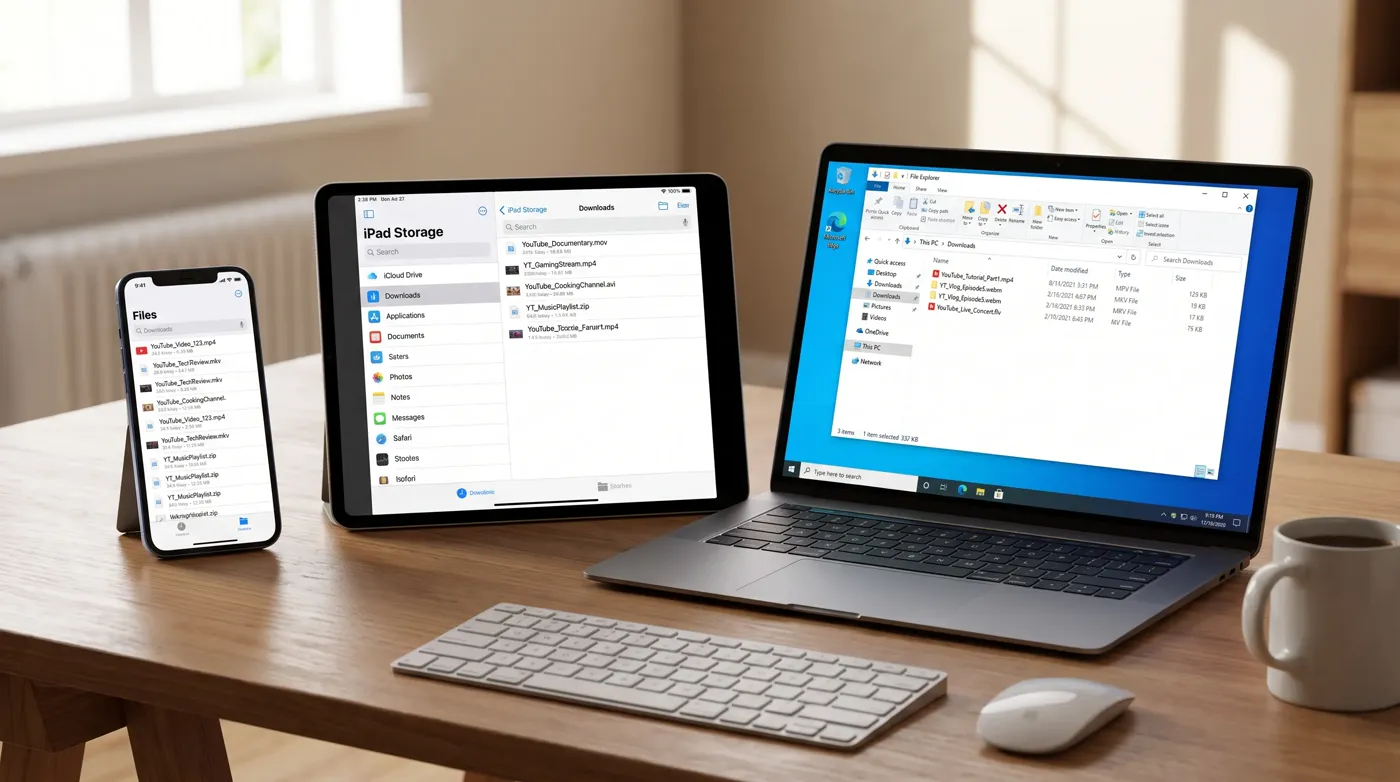
Where downloaded YouTube files are saved
The table below summarizes the usual save location by device. Browser settings can change the destination, but these are the first places to check after a YouTube video download.
| Device | Usual browser | Common save location | Helpful follow-up |
|---|---|---|---|
| iPhone or iPad | Safari | Files app, Downloads folder | Use Share, then Save Video if you want it in Photos |
| Android | Chrome | Files app or Downloads folder | Open once from Files if it does not appear in Gallery |
| Windows PC | Chrome, Edge or Firefox | File Explorer, Downloads | Rename the file so it is easier to find later |
| Mac | Safari, Chrome or Firefox | Finder, Downloads | Move it to Movies or another project folder |
| Chromebook | Chrome | Files app, Downloads | Pin or move important files before clearing storage |
If you cannot find the file, check your browser's download history first. Most browsers show recent downloads through a menu item named Downloads, and that entry usually includes an option to reveal the file in its folder.
Choosing the right quality and format
For most people, a youtube video download in MP4 is the best balance because MP4 plays on almost every phone, tablet and computer. Higher quality is not always the better choice, though. A 1080p or 4K file may look sharper, but it can take longer to save, use more storage and be less convenient to share between devices.
Choose a lower quality when you are saving a quick reference clip, using mobile data or working with limited storage. Choose a higher quality when you need the file for editing, presentation playback or watching on a larger screen.
Audio is another factor. Some platforms and browsers handle high-resolution video and audio as separate streams. If you download a file and it plays silently, try a different MP4 quality that includes audio. For a deeper fix, use this guide on why downloaded videos have no sound.
If you only need the soundtrack, podcast segment or lecture audio, an MP4 may be unnecessary. In that case, the YouTube to MP3 guide explains when an audio-only file makes more sense.
Troubleshooting common download problems
If your youtube video download fails, first test the original link in a private or incognito browser window. If the video does not play there, the issue is probably the link, video visibility, age restriction, region restriction or a deleted upload rather than your device.
If the link works, refresh the downloader page and paste the URL again. Copy the link from the video page itself, not from a playlist, search result or embedded player. Playlist and tracking URLs sometimes include extra parameters that can confuse download tools.
Connection issues can also interrupt larger files. Switch from mobile data to Wi-Fi, keep the browser tab open until the save finishes and avoid locking your phone while the file is still downloading. On iPhone, check Safari's download progress icon. On Android, check the notification shade.
For browser-related issues, try clearing the current tab, disabling content blockers for the downloader page or switching browsers. A quick browser change often solves problems caused by extensions, privacy settings or old cached data.
Safety, privacy and file management tips
A browser-based downloader is convenient because it avoids installing unknown software. Still, basic file hygiene matters. Save only from pages you trust, avoid fake download buttons and be cautious if a site asks for unnecessary permissions, logins or extensions.
After the file is saved, rename it with a clear title. YouTube filenames can be generic, especially when saved through mobile browsers. A simple name such as creator-topic-date helps you find the file later without reopening YouTube.
Storage can fill quickly if you download long videos. Review your Downloads folder regularly and move important files to a dedicated folder before deleting temporary clips. If you use cloud backup, remember that large MP4 files may sync automatically and consume cloud storage as well as local storage.
Frequently Asked Questions
It depends on the video, your rights to the content and how you plan to use it. Download only videos you own, videos you have permission to save or content made available for lawful reuse. YouTube's Terms of Service and copyright rules still apply.
Yes. Use Safari, copy the public YouTube link, paste it into a browser-based downloader and save the MP4 through Safari's download manager. The file usually appears in the Files app.
On iPhone, downloads usually go to Files first. On Android, they often go to Downloads. You may need to open the file, move it or use the share menu to save it to your gallery or Photos app.
MP4 is the safest choice for most users because it plays on iPhone, Android, Windows, Mac and Chromebook without extra conversion in most cases.
Available qualities depend on the original upload, the video's processing status, the platform's available streams and what the downloader can retrieve. Try a different quality if the first option does not work.
Save YouTube videos the simple way
For a quick youtube video download on any device, keep the process simple: copy the public link, open GrabVid in your browser, choose an available MP4 quality and save the file where you can find it. That same flow works across phones, tablets and computers, with only the final save location changing by device.